OP
Users
Users Workspace
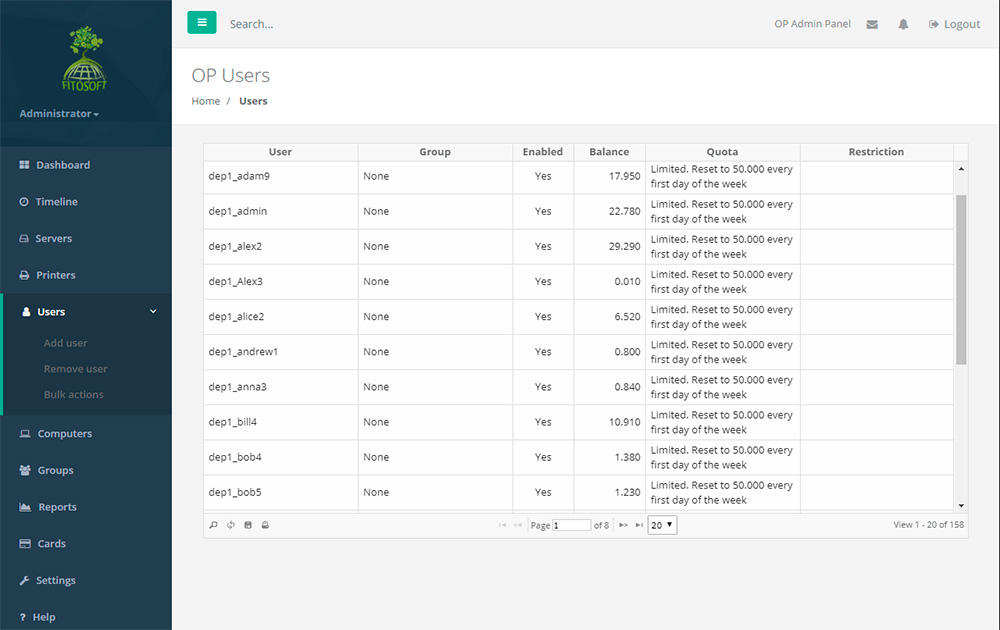
• View a list of all users
• Add and remove from a list of users
• View and change a user's credit balance
• Enable or Disable user access to printers
• Export the list of users to a HTML/CSV file
Add and Remove Users in the Users
List
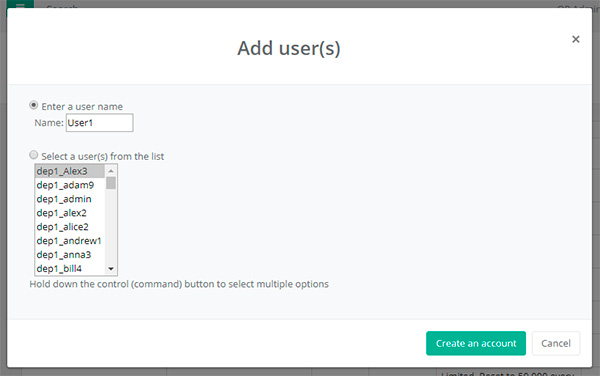
To Add a User:
Click the Create Button.
Enter the name or select a name from a list.
Click OK.
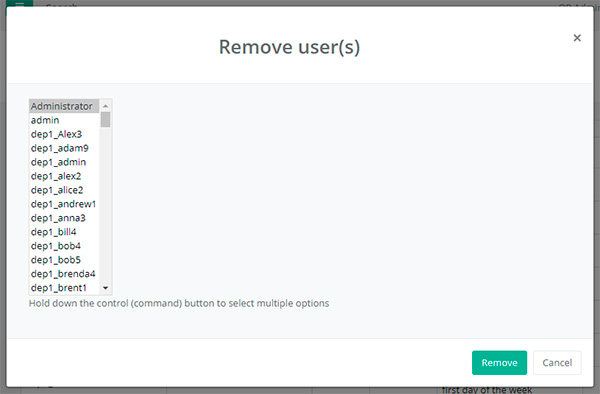
To Remove a User:
Click the Remove Button.
Enter the name or select a name from a list.
Click OK.
User Workspace
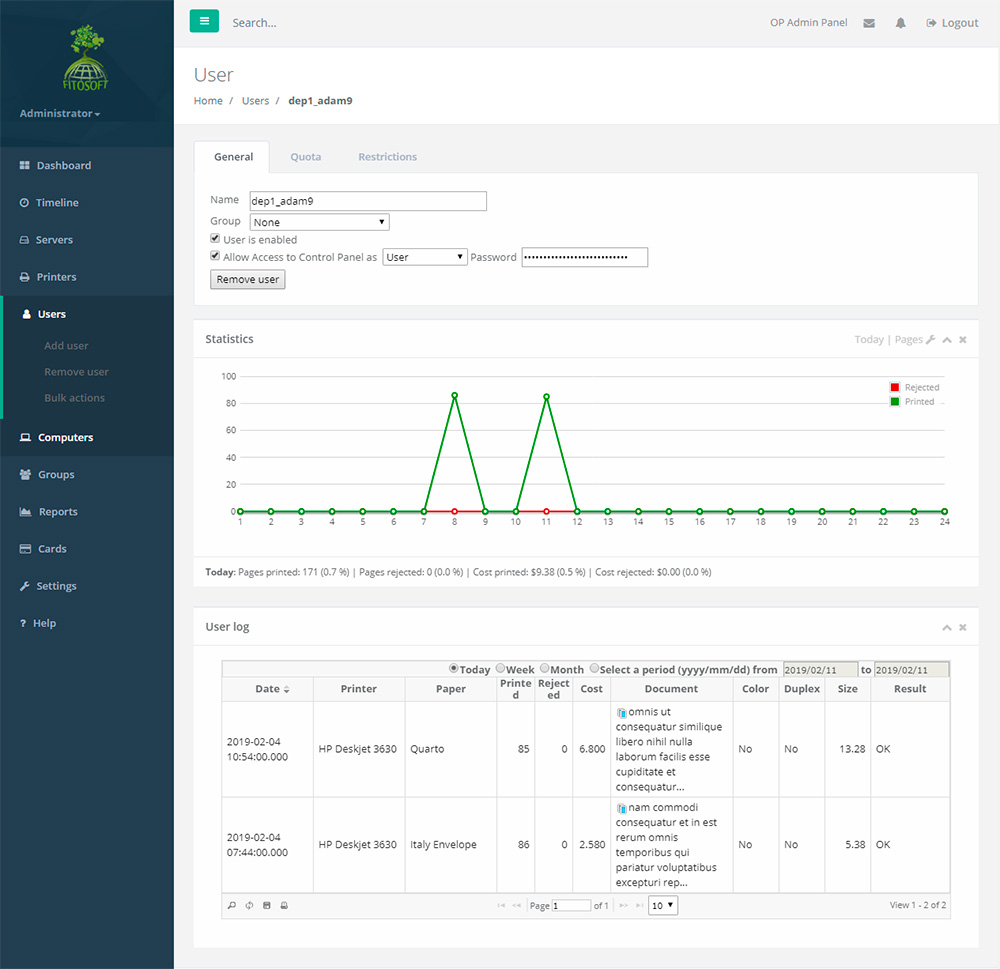
• View a
user's printing history and statistics
• List a user's detailed log printing activity
• Change user status, quota and restrictions
• Export a user's info to a HTML file
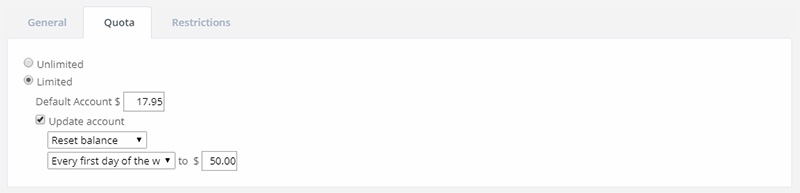
OP allow you to limit the amount of pages that may
printed by users. The current account represents the total cost available to
users for printing. If you define $10 as a quota, the user can print a maximum
of $10 - the total cost of copies. The quota can be turned off if you do not
wish to limit customer printing. OP allows you to reset a quota to a
fixed amount at the end of each day, week or month. There is also the option of
increasing the balance with OP, which allows their existing balance to
roll over. In addition, you can grant a user unlimited access to all printers.
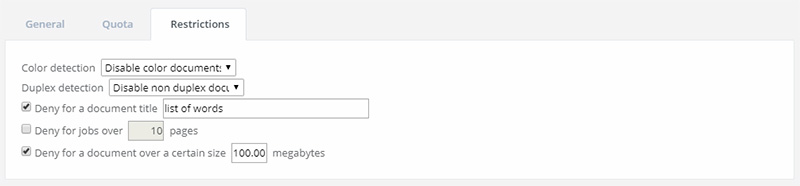
OP offers a variety of restrictions (rules) that can be
enabled on a per user basis. Printing is cancelled if the print exceeds the
maximum allowable print limit specified for a printer. Further restrictions
settings include the count of pages, the document title (e.g., restricted
words), color and the print job size.
*The dialogues of Groups and Computers are equal.
Bulk Actions
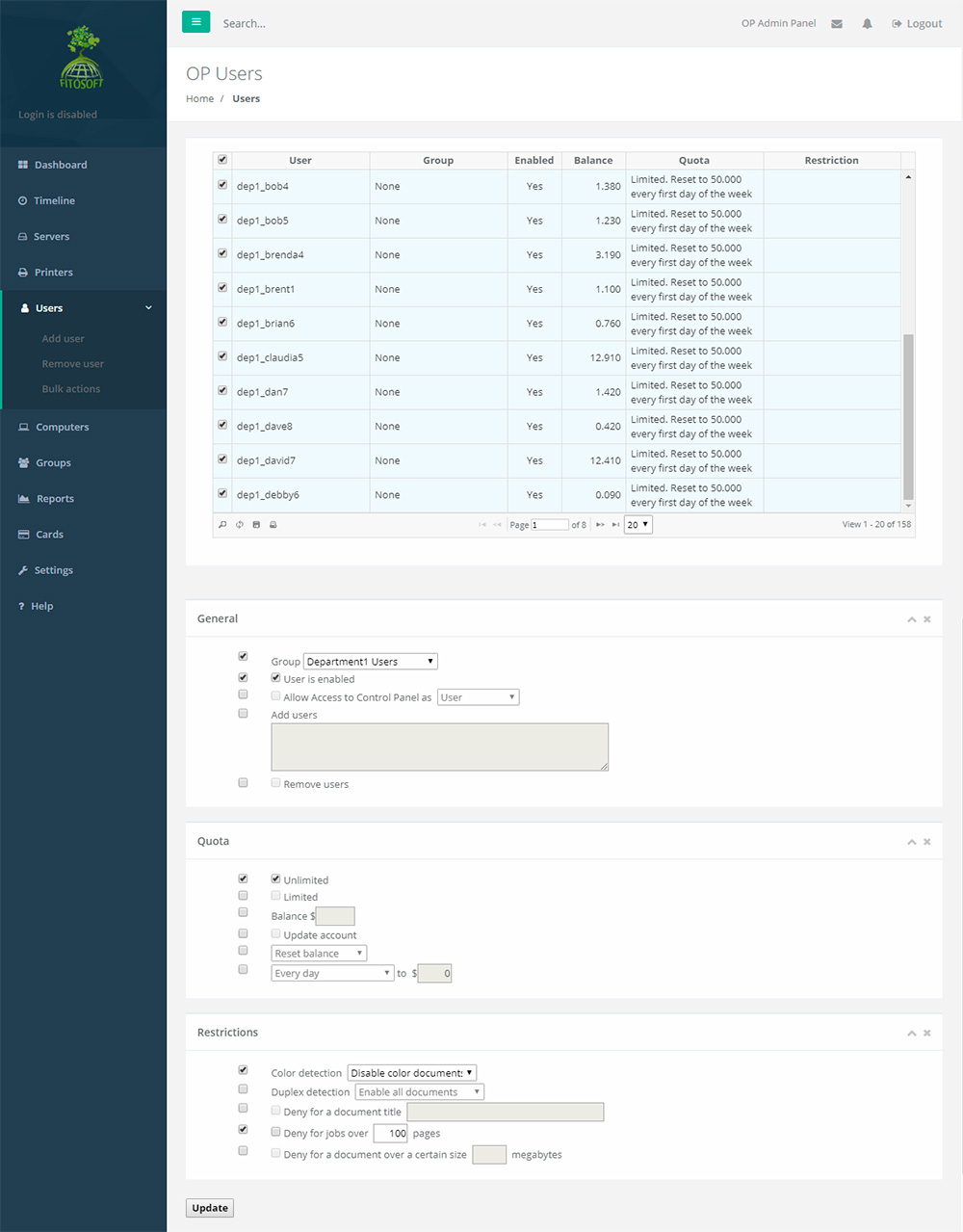
Bulk actions lets you
modify a chunk of data at once. This is dangerous operation and should only be
done when you need to modify users data at once.
|