OP
Assistant
OP Assistant is a software tool which is offering a help to
manage OP Services.
If needed, click the OP Assistant tray icon  to launch the OP Web Admin Panel. If the OP Assist tray icon isn't visible in
the system tray, click the Show hidden icons arrow located in the system tray
to reveal additional program icons.
to launch the OP Web Admin Panel. If the OP Assist tray icon isn't visible in
the system tray, click the Show hidden icons arrow located in the system tray
to reveal additional program icons.
Right-clicking on the icon opens the program menu.
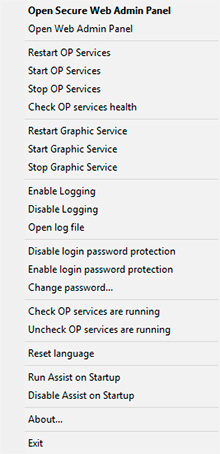
Context Menu
• Open Secure Web Admin Panel: Open
https://<server>:1562/ if
you have enabled the HTTPS feature
• Open Web Admin Panel: Open
http://<server>:1561/ unsafe
HTTP feature
• Restart OP Services: Restart ObjPrnSvc and
ObjPrnSrv Windows services
• Start OP Services: Start
ObjPrnSvc and ObjPrnSrv Windows services
• Stop OP
Services: Stop ObjPrnSvc and ObjPrnSrv Windows
services
• Check OP services health: Show OP Windows services status and
database health
• Restart Graphic Service: Restart GrphConv
Windows service
• Start Graphic Service: Start GrphConv
Windows service
• Stop Graphic Service: Stop GrphConv Windows
service
• Enable Logging: Turn logging on.
• Disable Logging:
Turn logging off.
• View log file: Open log file C:\Program
Files\Fitosoft\ObjectPrint4\Log\xxxx_xx_xx_events.log
• Disable
login password protection: Disable login password protection. OP Admin Panel
will be started during startup through automatic administrator logon, so you
do not have to enter a password.
• Enable login password protection: Enable
login password protection. Whether your browser starts prompting you for a
username and password.
• Change password: Reset forgotten or lost passwords
in OP.
• Check OP services are running: Enable OP services to re-start
automatically.
• Uncheck OP services are running: Disable OP services to
re-start automatically.
• Reset language: Setup current language interface
to English.
• Run Assist on Startup: Run OP Assistant on Windows startup
•
Disable Assist on Startup: Dont run OP Assistant on Windows startup
|


