OP
Prepaid Cards
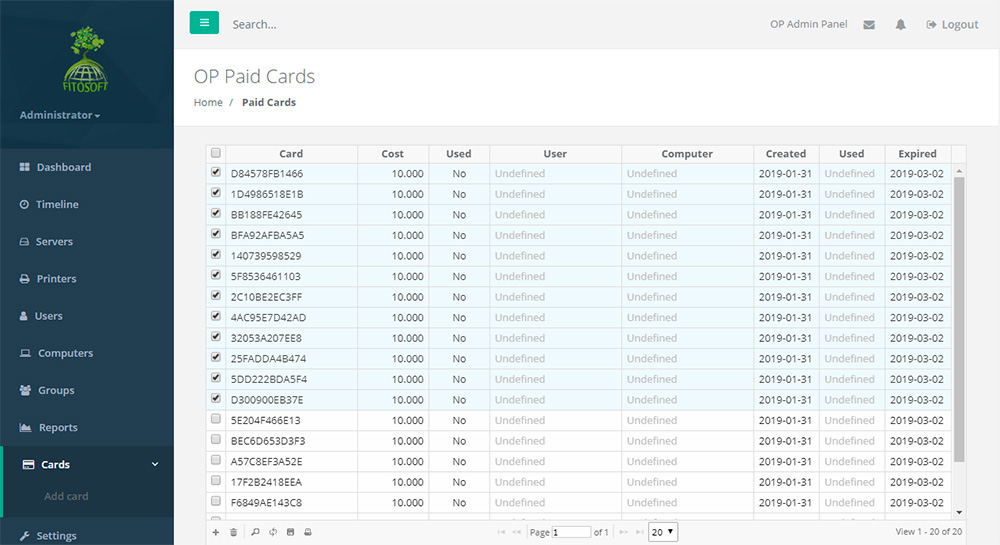
A Prepaid Print Card system allow users to
purchase print cards in case their print quota is exhausted.
The system includes:
• A web page for creating new cards.
• A web page for end-users to enter card numbers.
To Add Card in the Cards List
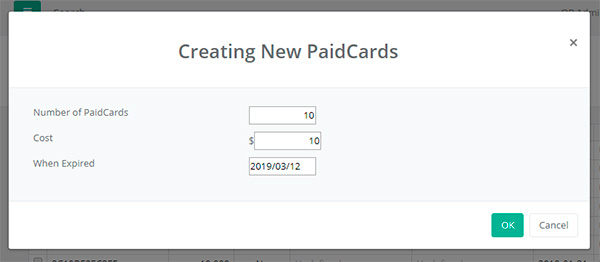
Click on Cards in the Navigator Pane.
Click the Create Button.
Enter the number of cards, the cost of each card and
the expiry date.
Click OK.
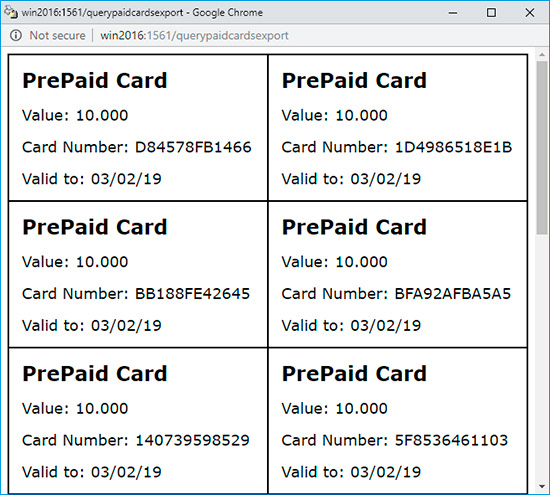
A new window opens and displays a print dialog
box.
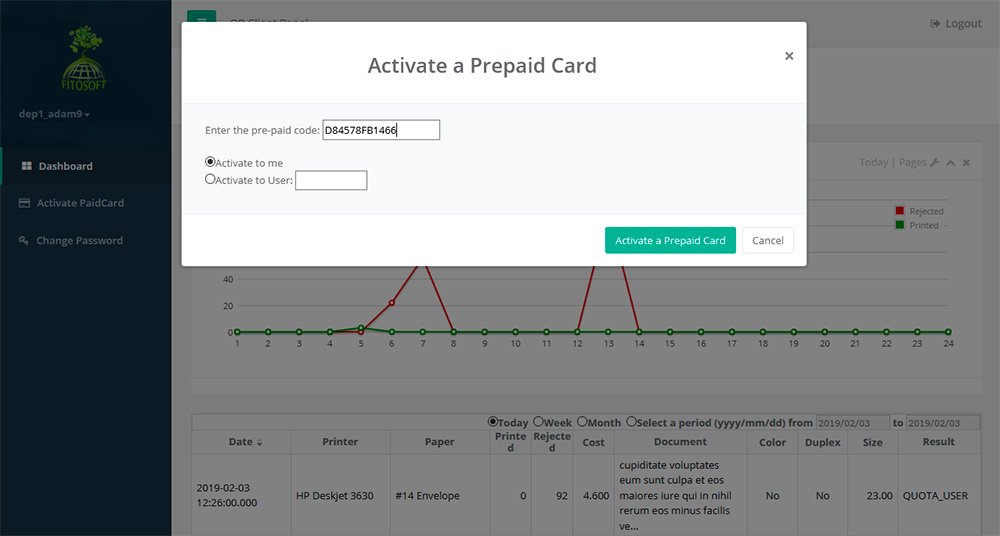
Activate a Prepaid Card
Logon to the OP server as a user. To increase the
balance of the OP Client Account, click the 'Activate PaidCard' button.
If a user has a valid prepaid card, type the code in the space provided, select
the appropriate account and the OP server and click on the 'OK' button
to update the subtotal.
Activate a Prepaid Card through OP Desktop Client
Click on the System Tray Icon  once so that the OP Desktop Client window opens: once so that the OP Desktop Client window opens:
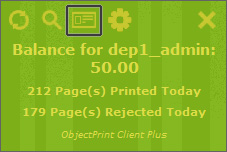
Click on the Paid Card icon. A dialog will prompt you to enter the Paid Code.
 If you wish to enable OP Client and OP Client
Plus for this server, check the ‘Enable OP Client’ and ‘Enable
OP Desktop Client’ checkboxes in the General Settings. Click ‘Enable
Prepaid cards’ to enable any prepaid cards. If you wish to enable OP Client and OP Client
Plus for this server, check the ‘Enable OP Client’ and ‘Enable
OP Desktop Client’ checkboxes in the General Settings. Click ‘Enable
Prepaid cards’ to enable any prepaid cards.
|


