OP First
Time Configuration Wizard
When OP starts for the first time, the
Configuration Wizard will offer to configure the main settings of
groups, users, printers and computers.
 Before running the OP First Time Configuration
Wizard, as described below, you should have already
completed installing OP. Before running the OP First Time Configuration
Wizard, as described below, you should have already
completed installing OP.
When you access OP in your web browser for the first time,
you will see the OP First
Time Configuration Wizard. This is a series of screens which will prompt
you to supply some default values. It will also offer some more advanced options
for settings of groups, users, printers and computers.
Go to the following web address in your web browser:
http://localhost:1561/ftwizard.html,
or use
https://localhost:1562/ftwizard.html
if you have enabled the HTTPS feature. The above web address uses
port '1562' with SSL/TLS protocol to provide encrypted
communication and secure identification. If you choose the "Express
Install" method, the OP administrator login is <your login
name> and password is blank.
The first time that you access the OP web
management you will be see a warning saying that this connection is
untrusted. This is because the OP web management is using
a self signed certificate that you will need to accept.
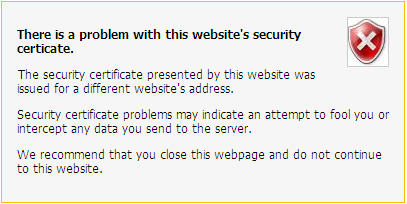
In Internet Explorer, you may see a warning
similar to this one:
 |
|
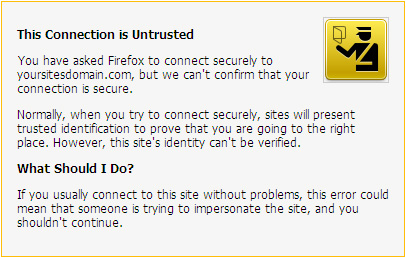
You may get a message similar to the following in Firefox:
|
Other web browsers, and different versions may
present different warning messages.
You should be able to just continue to the website
and ignore this. For more information, see the Firefox article
below:
http://support.mozilla.com/en-US/kb/This+connection+is+untrusted
|
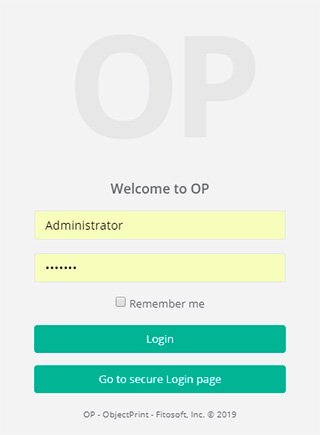
A prompt opens asking for a username and
password:
|
If you choose the "Express Install" method,
the OP administrator login is <your login name> and
the password is blank.
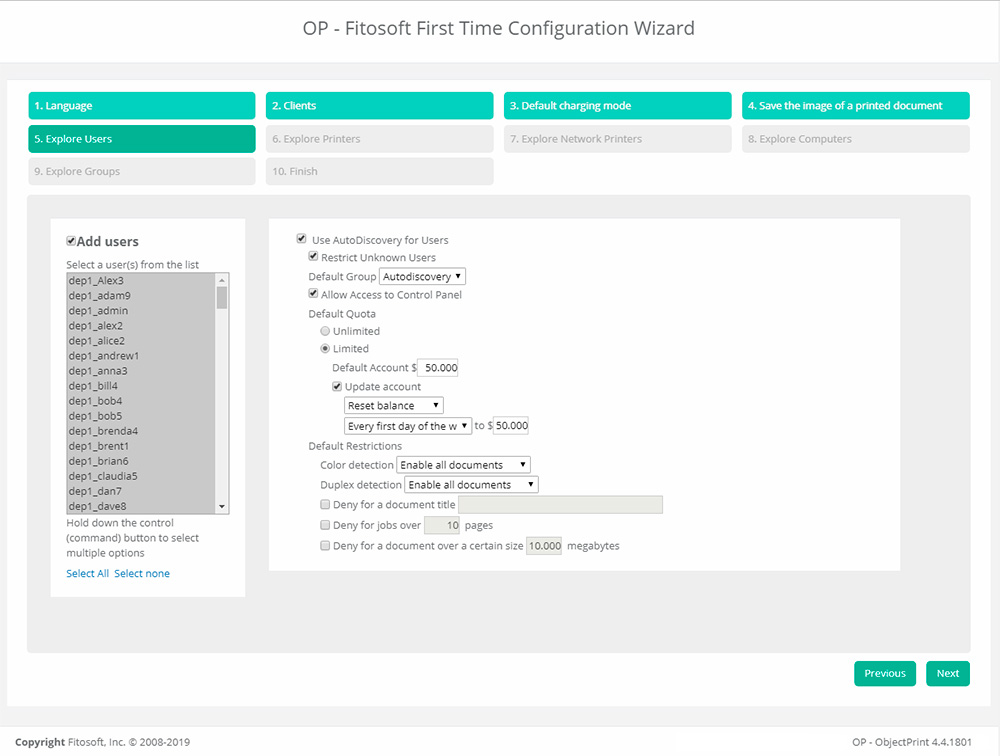
The wizard allows you to quickly and easily enter
settings before you open the OP user interface.
Configure user accounts:
 |
Configure printer accounts:
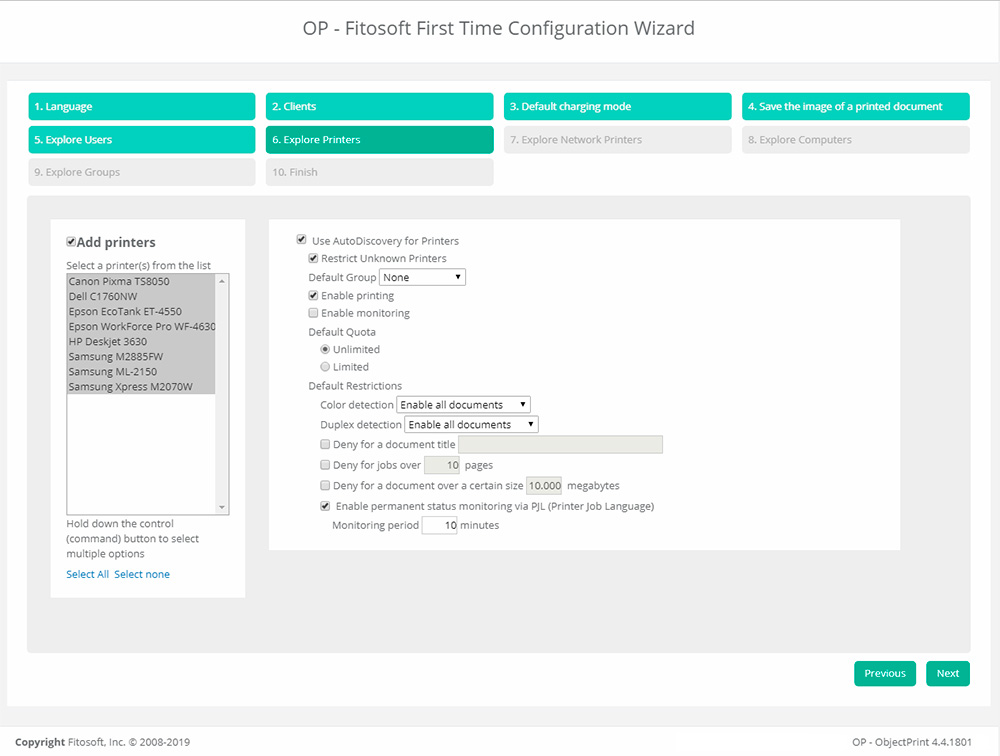 |
Configure other accounts are equal.
 Please note: it is possible to skip the installation of groups,
printers, computers, and users – they will be automatically added
later with the default settings. They can also be added via the
menu of the OP program.
Please note: it is possible to skip the installation of groups,
printers, computers, and users – they will be automatically added
later with the default settings. They can also be added via the
menu of the OP program.
|


